Google Search Console for small business: setup and reports
Add your site, verify ownership, submit a sitemap and read two reports without guessing what they mean.
 ClaroSi · Published · 9 min read
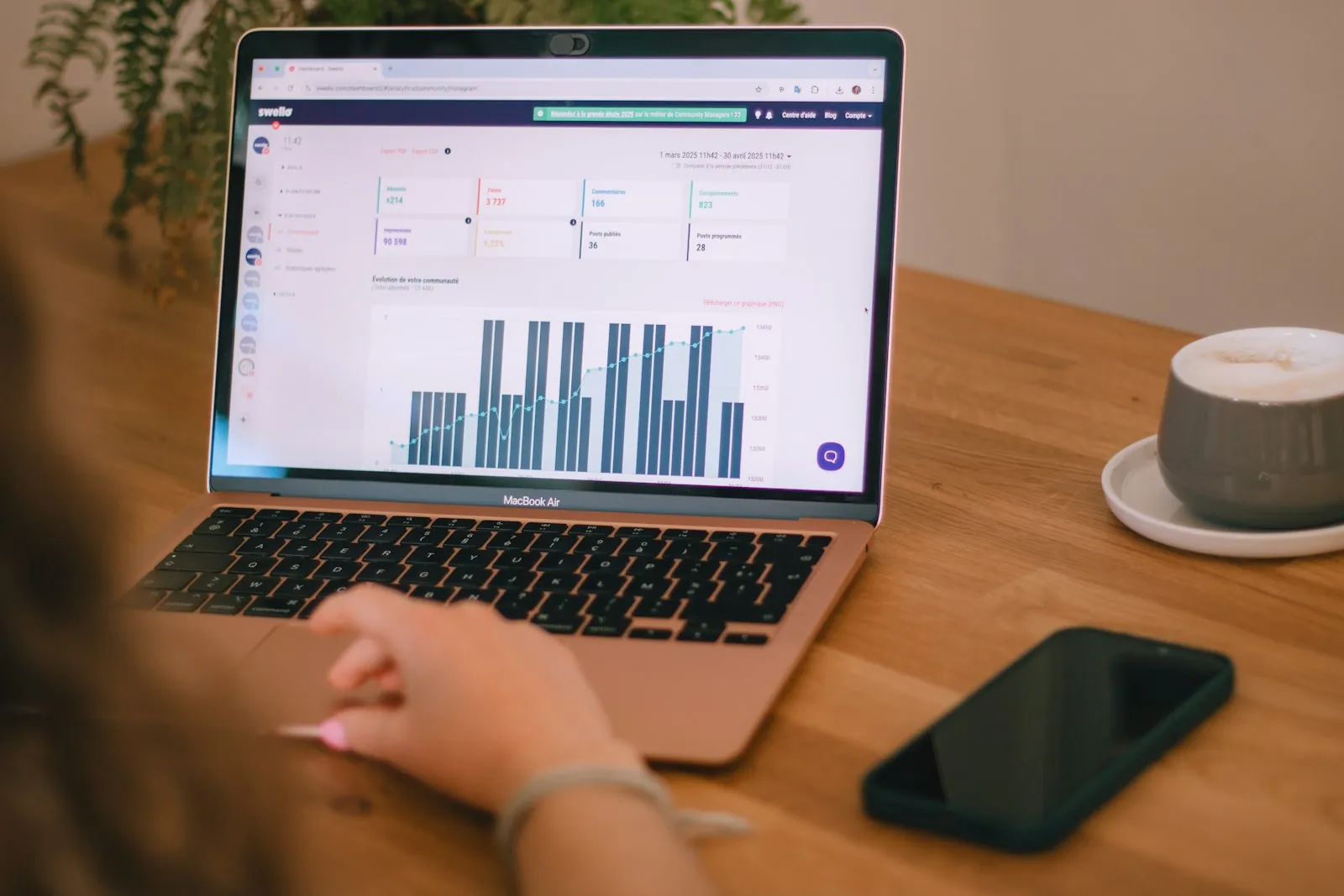
Have you added your site to Search Console and not known what the numbers mean? Start with setup, then read one report at a time.
Google Search Console is Google's reporting tool for your website. To use it, add your site as a property, verify that you own it, submit a sitemap if you use one, and then read the Performance and Page indexing reports. Read each report with its limits in mind. A report shows what Google recorded, not what will happen next.
Methodology, checked 7 November 2026: Reviewed Google's Search Console Help pages on adding a property, verifying ownership, the Performance report, the Page indexing report, URL Inspection and submitting a sitemap. Also reviewed Google Search Central's getting started guide and sitemaps overview. Search demand is about 9,900 searches a month in Ireland (DataForSEO, Google Ads data, checked 7 November 2026). Not available: a live ClaroSi client Search Console account, so no traffic, ranking or indexing result is claimed. No benchmark for a good click-through rate is given, because no source supports one.
What does Google Search Console show you?
Search Console is Google's own reporting tool for your website. It shows which pages Google has indexed, which searches brought people to your site, and whether Google reports problems with pages or sitemaps. It does not show every visitor, and it does not explain why a page ranks where it does.
Google describes the Performance report as showing traffic from Google Search, broken down by queries, pages and countries. [1] The Page indexing report shows whether each URL is Indexed or Not indexed. [5]
In what order should you use the reports?
Work in order. Add the property first, because data collection starts when the property is added, even before verification. Verify ownership next, then submit a sitemap if you want one. Read the reports only after the first data has had time to arrive. Change one thing at a time.
- 1. Add propertyDomain or URL-prefix. Verification follows.Collection starts here
- 2. Verify ownerDNS or HTML method. Keep it in place.Confirm owner access
- 3. Submit sitemapTest before submit.Optional · Check: Success
- 4. Read reportsPerformance, then Page indexing.Reports
Google describes a sitemap as optional, but says a submitted sitemap might speed up discovery. [1]
What to do: finish each step before you start the next. Give the data a few days before you judge anything.
Which property type and verification method should you choose?
Choose a Domain property if you want one view across the root domain, its subdomains and both protocols. Choose a URL-prefix property if you only want to track one exact address. Google says a Domain property requires DNS verification, unless the site is on a Google product such as Blogger or Google Sites.
| Option | What it covers | How you verify | Watch out for |
|---|---|---|---|
| Domain property | Root domain, all subdomains, http and https | DNS record, unless the site is on Blogger or Google Sites | Keep the DNS record in place after verifying. |
| URL-prefix, HTML file upload | Only the exact address entered, including protocol and path | Upload the file Google provides to the site root | Removing the file loses verification. |
| URL-prefix, HTML tag | Only the exact address entered | Add the meta tag to the homepage head | Keep the tag on the homepage. |
| URL-prefix, Analytics or Tag Manager | Only the exact address entered | Existing snippet with edit rights (Analytics) or Publish or Admin permission (Tag Manager) | Check the person has that permission first. |
| Blogger or Google Sites account | The site managed by that account | Automatic when you sign in with the account that manages the site | Older or custom-domain sites may need the HTML tag instead. |
Google says verification lasts only as long as Search Console can confirm the verification token. Do not remove the file, tag or DNS record after you verify. [3]
Which setup checks should you complete?
Complete these checks before you read any report. Confirm that the property type fits your site, that the verification method will stay in place, and that at least one verified owner can manage the property. Write down the date and the person responsible. Skip an item only when you can say why it does not apply.
Property
- Add the property and choose Domain or URL-prefix.
- Add a separate URL-prefix property for each protocol or subdomain you want to track.
- Expect data to begin to appear in a few days.
Verification
- Pick a method you can keep in place.
- Do not remove the verification file, tag or DNS record after verifying.
- Keep at least one verified owner who can manage the property.
Links and discovery
- Link important pages from pages Google can already reach.
- Google needs a way to find a page before it can crawl it.
- Make sure the main service and contact pages are easy to reach from the navigation.
Sitemap
- Test the sitemap address with a live URL inspection.
- Submit it in the Sitemaps report and check the status reads Success.
- Remember that a sitemap does not guarantee indexing.
Record
- Note the property type, the method and the date verified.
- Note who the verified owners are.
- Note the sitemap address and the date you submitted it.
Sources for these checks: property and data timing [2] [1]; verification [3]; links and discovery [5]; sitemap [7] [8].
How do you submit a sitemap?
A sitemap is a list of the pages you want Google to know about. Google says it is optional, and that good internal links can be enough for many small sites. If you submit one, test its address with URL Inspection, paste it into the Sitemaps report and check for Success. Submitting it does not guarantee indexing.
- Check you have owner permission on the property. If not, list the sitemap in your robots.txt file instead.
- Publish the sitemap in an accepted format, ideally at the root of your site.
- Run a live URL inspection on the sitemap address and check that the page fetch succeeds.
- In the Sitemaps report, paste the tested address into Add a new sitemap, then click Submit.
- If the status is not Success, open that row to see the errors.
The status tells you what happened. Success means Google read the file with no errors. Has errors means Google could fetch it, and URLs that parsed correctly are still queued. Couldn't fetch means Google could not retrieve the file, so troubleshoot the fetch errors. [7]
Want a first look at your public pages? Get the free check.
How do you read the Performance report?
Start with clicks and impressions for a fixed date range, then check which queries and pages drive them. Impressions show how often your site appeared in results. Clicks show how often people clicked through. Read the newest data as preliminary, because it can change over the next few hours.
- Clicks: times someone clicked through to your site from Google Search results.
- Impressions: times your site appeared in Google Search results.
- CTR: clicks divided by impressions.
- Average position: calculated differently in the chart and the table, so compare like with like.
- Date range: defaults to three months. Compare periods of the same length.
- Tables: break results down by queries, pages, countries and devices.
The report covers Google Search results only. It is not your total website traffic. [4] [1]
How do you read the Page indexing report?
Each URL is either Indexed or Not indexed. Not indexed does not always mean an error, so read the reason for each URL before acting. Discovered means Google has found the address but not crawled it yet. Crawled means Google read the page and chose not to index it.
- Indexed: the page is in Google's index and may appear in results.
- Discovered - currently not indexed: Google may delay crawling to avoid overloading the site. For a new page, wait a few days. For missing parts of the site, check the links.
- Crawled - currently not indexed: Google says this is common. For important pages, run URL Inspection and check for problems that could block them.
- Fixability: only issues with source "Website" are generally fixable by you.
These statuses come from the Page indexing report. [5]
What do these reports prove, and what do they not prove?
Each report answers one narrow question. A Performance figure shows what Google recorded for a period. An index status shows where a URL stands in Google's records. A passing live test shows the page can be fetched now. None of these guarantees rankings, traffic or indexing, so write the limit beside each result.
| Check | What it proves | What it does not prove |
|---|---|---|
| Performance clicks for a date range | Google Search clicks recorded in that period | Total traffic from all sources, or future demand |
| URL is on Google | The page is eligible to appear in results | That it will appear for a given search. Google says this is not guaranteed. |
| Live test passes | The page can be fetched and read now | That it will be indexed, or which canonical Google will choose |
| Sitemap status Success | Google fetched and read the file without errors | That listed pages will be crawled or indexed |
| Request indexing | Google received the request for that URL | That the page will appear. Google says a request does not guarantee inclusion. |
| Crawled - currently not indexed | Google read the page and chose not to index it | That the page is poor quality. Google says this status is not necessarily an issue. |
Sources for these limits: Performance [4]; indexing statuses [5]; URL Inspection [6]; sitemaps [7].
What should you check in the first 30 days?
Set up in the first week, then review on a steady schedule rather than daily. Google says data should begin to appear in a few days and suggests checking roughly monthly. The schedule below is a suggested cadence, not a Google requirement, so adjust it to how often your site changes.
- Day 0: Add the property, verify ownership and record the method and date.
- Days 1 to 3: Check for any message from Google about new issues. Google says it emails you when it finds new issues on your site.
- Within a few days: Confirm the Performance report and Page indexing report show data. If they do not, check the property is verified.
- Week 1: Submit a sitemap if you use one, then check that the status reads Success.
- Weeks 2 to 4: Read the Page indexing report for your important pages. For any Not indexed page, note the reason and check its links.
- Every month after that: Review trends in the Performance report, log the result and check again after any major content change.
Sources for this cadence: data timing, monthly checks and issue emails [1]; sitemap status [7].
What should you do when a report shows a problem?
Start with the report that shows the problem and read the exact status or reason. Fix the setup first if it blocks data, then check the page or sitemap. Change content only when a report points to a specific cause. Work through the questions below in order and stop at the first match.
- Is the Performance report empty?
Check the property is verified and that the data is for a period after it was added. If it was working and has stopped, check the verification method is still in place. - Does the Sitemaps report say Couldn't fetch or Has errors?
Open the row, fix the sitemap file or address, then resubmit. Google queues only the URLs it could parse without errors. - Is an important page Discovered - currently not indexed?
Check that other pages link to it, then allow time. Google may delay crawling. - Is an important page Crawled - currently not indexed?
Run URL Inspection and check for anything that could block the page. Compare it with the rest of the site before you change content. - Is a page missing from Google altogether?
Follow the step-by-step checks in Why is my website not showing in Google Search yet?
If the evidence points to a technical fault, see Technical SEO Improvements. Sources for this tree: [7] [5] [6].
What should you record each month?
Keep one short record for setup, one for each monthly review and one for each action. A dated record shows whether a change worked. Do not overwrite old entries. Write down what you saw, not what you hoped to see, and note the limit of each result.
Three short records. One clear history.
Use these cards in a spreadsheet or project ticket. Fill them with your own property details and the results you see in your reports.
Record the setup
Start with one row for each property.
- Property
- Domain or URL-prefix, and the exact address
- Verification
- Method used and the date verified
- Owner
- Person who can manage the property
- Sitemap
- Address, status and date submitted
Property: URL-prefix
Verification: HTML tag
Sitemap: Success
Owner: Site lead
Log each monthly review
Use the same date range each month.
- Date
- When you reviewed the reports
- Date range
- The period you compared
- Clicks and impressions
- Your figures, not estimates
- Top pages and queries
- The three to five most important
- Note
- What changed and the limit of the result
Date: Month 1
Date range: Last three months
Clicks: Your figure
Note: Preliminary data excluded
Track each action
Give each finding one owner and one recheck date.
- Finding
- Report and status shown
- Action
- The one change agreed
- Recheck date
- When you will look again
- Owner
- Person who will act
- Result
- What the recheck showed
Finding: Crawled - currently not indexed
Action: Add internal links to the page
Recheck: A date you choose
Owner: Site lead
The examples are placeholders. Replace them with your own property details and results from your reports.
What do people ask about Search Console setup?
These questions come up most often when people set up Search Console. The answers follow the reports and setup rules Google describes, and they do not promise a result. Use them as a quick check before you change your site or your settings.
Can I verify Search Console without Google Analytics?
Yes. Google lists several verification methods, including an HTML file upload, an HTML tag and a DNS record. Analytics and Tag Manager are options only if you already use them and have the right permission. A Domain property requires DNS verification, so plan for that if you want one view across all subdomains.
Why do my numbers change for the last few days?
Google marks the newest data as preliminary and shows it as a dotted line on the chart. That data is still being collected, so it can change over the next few hours. Wait until it settles before you compare it with earlier periods, and use the same date range for both.
Do I need to fix every Not indexed page?
No. Google says Not indexed is not necessarily bad, and that it does not index every page on the web. Start with the pages that matter most to customers, such as your main service and contact pages. Check the reason shown for each one before you act on it.
Can I ask Google to index a page?
You can request indexing in URL Inspection, but Google says a request does not guarantee that the page will appear in the index. A live test checks whether the page can be fetched now. It cannot confirm whether the page will be indexed or which canonical Google will choose, so read both results.
Do I need a sitemap for a small website?
Google describes a sitemap as optional. If your pages are well linked, Google can usually find most of a small site without one. A sitemap can help discovery and gives you a status to watch. It does not guarantee crawling or indexing, so treat it as a helpful extra rather than a fix.
Sources for these answers: verification methods [3] [2]; Performance data [4]; indexing statuses [5]; URL Inspection [6]; sitemaps [8] [7].
Primary sources
- Get started with Search Console, Google Search Central. Checked 7 November 2026.
- Add a property to Search Console, Google Search Console Help. Checked 7 November 2026.
- Verify your site ownership, Google Search Console Help. Checked 7 November 2026.
- Performance report, Google Search Console Help. Checked 7 November 2026.
- Page indexing report, Google Search Console Help. Checked 7 November 2026.
- URL Inspection tool, Google Search Console Help. Checked 7 November 2026.
- Submit a sitemap, Google Search Console Help. Checked 7 November 2026.
- Sitemaps overview, Google Search Central. Checked 7 November 2026.
At ClaroSi, we run evidence-led website and search reviews for Irish startups, solo founders and small businesses. Read about the approach.